Business Management Software Integrations QuickBooks Shopify
Practical 2026 guide to integrate QuickBooks, Shopify, Zapier and Google Workspace into a unified business workflow for small businesses.
Neste artigo
- Overview: business management software integrations QuickBooks Shopify Zapier Google Workspace
- Planning integrations and data mapping
- Step-by-step integration guide
- Advanced workflows and automation
- Security, compliance and data integrity
- Measuring ROI and scaling integrations
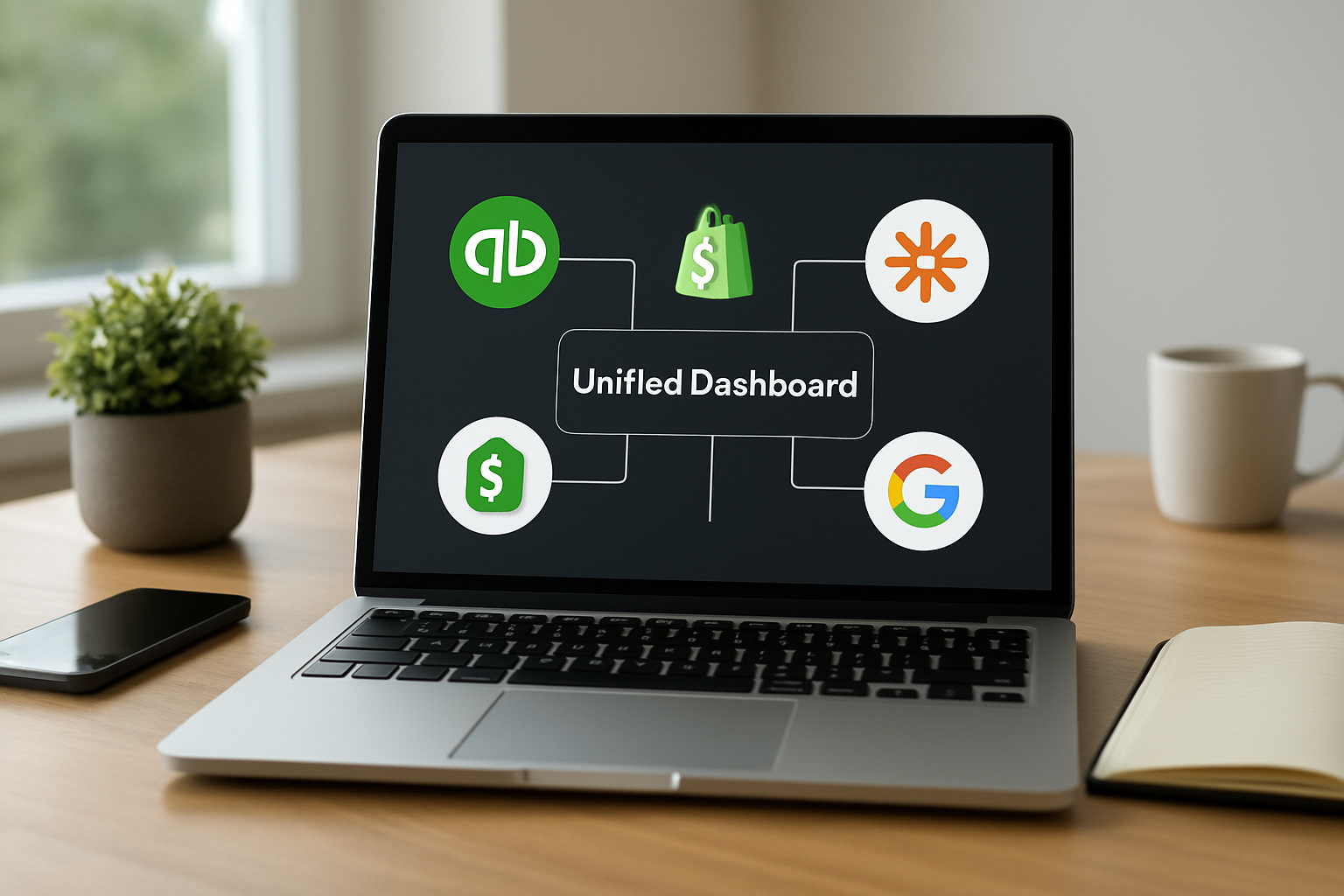
business management software integrations QuickBooks Shopify Zapier Google Workspace is the backbone of how we streamline operations and turn scattered data into a reliable task-to-cash flow. From our experience helping small businesses centralize customer records and finance tracking, we know that integrations stop being a luxury and become the operational clarity that frees founders to grow. We mention My Business Suite here because our approach mirrors the unified business hub mindset: centralize, automate, measure.
Overview: business management software integrations QuickBooks Shopify Zapier Google Workspace
We begin with the big picture and then unpack practical steps. Integrations connect tools so that invoices, orders, contacts and calendar events move without manual copy-paste. When we get this right, team communication tightens, billing errors fall, and financial visibility improves.

- Why integrate: reduce duplicate entry, speed reconciliation, and keep clients visible across systems.
- Primary targets: accounting (QuickBooks), e-commerce (Shopify), automation (Zapier), productivity (Google Workspace).
- Outcome we pursue: a single source of truth for customer interactions and cash flow reporting.
In practical terms, integrations let an order from Shopify create a sales receipt in QuickBooks, notify the team via Google Workspace, and trigger follow-up tasks using Zapier. That chain is what we call client-centric efficiency in action.
Core concepts we rely on: business management software integrations QuickBooks Shopify Zapier Google Workspace
- Canonical customer records: one ID that links orders, invoices and communications.
- Event-driven automation: actions trigger next steps instead of manual handoffs.
- Auditability: every transaction and sync must be traceable for reconciliation.
Planning integrations and data mapping
We never jump straight to wiring tools together. Planning prevents months of firefighting. In this section we map data flows, set priorities and identify stakeholders for a smooth rollout.

Define objectives and scope
First, we list what we want the integration to achieve and how success will look. Typical goals include faster invoice-to-payment cycles, fewer customer support tickets about orders, and automated bookkeeping entries for tax-ready records.
- Priority metric examples: days-to-payment, time spent on reconciliation, support response time.
- Scope decision: full sync (orders, customers, inventory, payments) versus limited (orders → invoices only).
QuickBooks and Shopify mapping basics
We map each Shopify field to its QuickBooks counterpart before syncing. Common mappings include customer name, email, shipping address, line items, taxes and payment status. Getting this right upfront saves hours in reconciliation.
- Customer mapping: ensure email or an external ID serves as the canonical key.
- Product mapping: SKU alignment avoids duplicated inventory items in QuickBooks.
- Tax and shipping: decide whether Shopify taxes map to QuickBooks tax codes or remain separate for reporting.
For reference on integration options and app marketplaces, we consult vendor documentation such as the Shopify Help Center and the QuickBooks App Store. Those pages help clarify what fields are available to sync and which apps offer two-way updates.
Stakeholders and roles
We assign responsibilities early: who owns customer data, who approves field mappings, who tests reconciliation, and who monitors ongoing sync health. This prevents the usual finger-pointing after a failed import.
- Data owner: typically a finance lead or the founder.
- Integrator: person or vendor who performs the technical setup.
- Tester: someone who validates sample transactions end-to-end.
Step-by-step integration guide: business management software integrations QuickBooks Shopify Zapier Google Workspace
We walk through a hands-on implementation that ties business management software integrations QuickBooks Shopify Zapier Google Workspace into a unified workflow. The following steps reflect a practical, minimal-risk rollout.
Step 1 — Prep environments
We create sandbox accounts where possible and back up existing data. For QuickBooks Online, we enable a test company or use a backup export. For Shopify, we verify the store settings and payment gateway configuration.
- Export customer and order data as CSV for reference.
- Document tax codes and SKU lists.
- Confirm admin access for the integrations we plan to use.
Vendor documentation is indispensable; we reference the Google Workspace admin documentation for permission best practices and the Zapier app directory for automation connectors.
Step 2 — Connect QuickBooks and Shopify
We choose an integration path: direct app from Shopify to QuickBooks, or a middleware connector. Our preference often leans to well-documented connectors that support two-way sync and robust error handling.
- Install the chosen connector in Shopify and authorize QuickBooks access.
- Configure mappings: customers, products (SKU → item), taxes, shipping fees.
- Run a limited sync (last 30 orders) and reconcile sample transactions.
We test payment statuses to ensure that paid orders create closed invoices in QuickBooks. If the chosen connector logs errors, we make corrective mapping changes until sample transactions match expected accounting entries.
Step 3 — Add Zapier for custom automations
We use Zapier when we need bespoke triggers or when a native connector lacks a required workflow. Zapier acts as an automation layer between Shopify, QuickBooks and Google Workspace.
- Example Zap: when a Shopify order is paid → create QuickBooks invoice → add a Google Calendar event for fulfillment.
- Use filters and path logic to avoid triggering on test orders or low-value transactions.
- Leverage delay steps when waiting for payment confirmations to prevent premature invoice creation.
Zapier’s interface lets us set retries and error notifications so that integration failures become tickets for the team to resolve rather than silent data loss.
Step 4 — Sync communications with Google Workspace
We integrate contact records and create calendar events and shared drives to keep teams aligned. When orders trigger tasks, the relevant team members should see those tasks in their Google Calendar and find supporting documents in a shared Drive folder.
- Automate contact updates to a centralized Google Sheet or directory that the team references.
- Create calendar triggers for shipping windows and follow-ups.
- Store invoices and receipts in a dedicated shared Drive folder, named by order ID for traceability.
Step 5 — Test, reconcile, iterate
We run a set of test scenarios: a paid order, a refunded order, and a partially fulfilled order. Each scenario is reconciled in QuickBooks to ensure financial accuracy.
- Reconcile bank deposits in QuickBooks with actual gateway deposits.
- Validate tax reporting fields match the jurisdiction rules used by the business.
- Log all exceptions and fix mappings or Zap logic accordingly.
We also build a short test checklist to repeat after each change: sample order creation, simulated refund, partial shipment, and a manually created customer merge. Running this list catches mapping edge cases early. Running these tests before full rollouts prevents the kind of surprises that cost hours to untangle.
To make tests repeatable, we keep a versioned CSV of sample transactions and a short runbook for the tester to follow. The runbook includes steps to capture logs, where to find error codes, and the person responsible for escalation. That small discipline turns ad-hoc debugging into a process the team can follow reliably.
Advanced workflows and automation
Once the basics are stable, we design higher-order automations that reduce manual work and increase client-centric efficiency. The goal is for systems to collaborate and surface exceptions for human attention only.
Using Zapier for multi-step orchestration
We build Zaps that chain multiple systems and include conditional logic. In practice, that means an order can create accounting entries, assign a fulfillment task, send a templated customer message, and update a CRM timeline — all on one event.
- Multi-step example: Shopify order → QuickBooks invoice → Gmail notification via Google Workspace → update CRM in My Business Suite.
- Use conditional branches to skip steps for wholesale accounts or returns.
Optimizing with business management software integrations QuickBooks Shopify Zapier Google Workspace
We analyze which fields are most valuable for reporting and which are noise. Often, custom fields in Shopify hold marketing tags; we decide whether those tags belong in accounting or should remain in the CRM. Trimming unnecessary syncs speeds the pipeline and reduces reconciliation noise.
- Aggregate customer lifetime value by joining QuickBooks revenue with Shopify order history in a dashboard.
- Automate follow-up sequences in Google Workspace from order milestones — first shipment, delivery confirmation, invoice overdue.
For advanced API integrations or direct webhooks, we rely on vendor API documentation to ensure stable, authenticated endpoints. Google Workspace and QuickBooks both provide robust developer docs for secure integrations.
We also consider hybrid approaches: keep core accounting flows on a native connector while using webhooks and middleware for high-volume, latency-sensitive operations. That lets us balance ease of use with performance, and gives the engineering team a clear boundary between simple automations and full-blown integrations that require code.
Security, compliance and data integrity
We never sacrifice security for speed. Securing credentials, limiting scopes, and auditing access are minimum requirements for a stable integration strategy.
Access control and permissions
We apply least-privilege principles to service accounts and API keys. Only the integrations that require write access get it; others receive read-only permissions.
- Rotate API keys and service account credentials on a scheduled cadence.
- Use Google Workspace admin controls to manage third-party app access.
- Log all admin-level changes for accountability.
Data retention and record-keeping
We align retention policies with small business best practices so that financial records remain available for tax and audit purposes. For guidance on record-keeping obligations and recommended retention periods, we consult official resources such as the U.S. Small Business Administration.
- Keep transaction-level backups for at least the period recommended by tax authorities.
- Store reconciled PDFs of invoices and receipts in a dedicated, versioned Drive folder.
- Ensure export procedures exist for migrating data if systems change.
We recommend periodic integrity audits where we sample reconciled transactions and verify the chain from Shopify order to QuickBooks deposit. Those audits, scheduled quarterly, act as a safety net and inform improvements to mappings and automations.
Measuring ROI and scaling integrations
We measure the impact of integrations through tangible KPIs and iterate from real outcomes. Integration projects are validated when they shave time from recurring tasks and improve cash flow metrics.
Key performance indicators to track
- Reduction in hours spent on monthly reconciliation.
- Days sales outstanding (DSO) improvement after automating invoicing.
- Decrease in order-to-fulfillment time.
- Number of sync errors per month and time to resolution.
Dashboards in accounting tools and BI layers help us spot anomalies early. QuickBooks provides built-in reporting for revenue and cash flow; for deeper joins with Shopify order history we export data into a dashboarding tool or into My Business Suite’s unified reports to preserve the single source of truth.
For QuickBooks reporting guidance, we reference the QuickBooks resources on reporting best practices available at the QuickBooks resource center. For automation patterns and inspiration, the Zapier blog and app directory provide examples of workflows that companies commonly adopt; those patterns inform our templates.
Reporting templates and action steps
We build simple dashboard templates that leaders can read at a glance. Each dashboard includes widgets for:
- Monthly revenue vs. forecast (by source: Shopify, other channels).
- Average days-to-payment and trend lines.
- Top 10 customers by revenue and repeat-purchase rate.
- Sync error heatmap and oldest unresolved issue.
As an example scenario (hypothetical), imagine we track a store with 200 monthly orders: after automating invoicing and reconciliation, a team might cut reconciliation time from several days to a handful of hours. We call out that this is an illustrative scenario; actual results depend on volume and initial process maturity.
Scaling the integrations
When transaction volume grows, we scale by shifting from ad-hoc Zaps to event-driven webhooks and, where necessary, leveraging dedicated middleware that handles retries and idempotent writes. We plan scaling windows and test performance under load so that spikes in sales do not break accounting flows.
- Introduce batching for high-volume order imports.
- Monitor API rate limits and request increased quotas where possible.
- Document runbooks for common failure modes so the team can recover quickly.
Integrating QuickBooks, Shopify, Zapier and Google Workspace is about shaping processes that simplify work and free leaders to focus on growth. That is the essence of an integration strategy.
We keep refining those dashboards and automations as the business changes. When seasonal spikes come, we run load tests, update thresholds, and adjust notifications so that the team receives meaningful alerts instead of noise. That operational clarity is how we help entrepreneurs scale without losing control over their day-to-day.
Frequently asked questions
Below we answer the most common implementation questions using clear steps and references.
How do we choose between a native connector and Zapier for QuickBooks–Shopify integration?We evaluate based on reliability, two-way sync capability, and error handling. Native connectors often offer deeper, two-way syncing and simpler setup. Zapier provides flexibility for custom workflows and conditional logic. We typically pilot with the native connector for core accounting sync and use Zapier for edge-case automations. For connector features, see the QuickBooks App Store and Zapier app directory.
What safeguards should we use to prevent duplicate invoices or customers?We design canonical keys (email or external ID) that determine uniqueness and enable de-duplication logic in the integration. Before a full sync, we run a reconciliation on a sample set to find duplicates and correct mapping rules. Implementing idempotency checks and maintaining a synchronization log are practical ways to prevent duplicates.
Can Google Workspace store invoices and keep them searchable for compliance?Yes; we create a structured Drive folder with standardized naming conventions (orderID_invoice_date) and use Drive’s search and Drive metadata to keep documents discoverable. For access controls and long-term retention policies, we follow Google Workspace admin guidelines available at Google Workspace admin docs.
How do we measure the impact of integrations on cash flow?We track DSO, invoice-to-payment time, and reconciliation hours before and after integration. Short-term improvements should appear in the first one to three billing cycles. For accurate benchmarking, we export QuickBooks reports and pair them with Shopify order data to calculate aggregate improvements.
We hope this guide helps us collectively plan and execute integrations that convert administrative drag into operational clarity. When we centralize the flow from order to cash, the business breathes easier and the team can focus on growth rather than firefighting. If we want to see a live example of these patterns in action, we can examine product documentation and case studies on the vendors’ official sites and then adapt the patterns to our specific workflows.